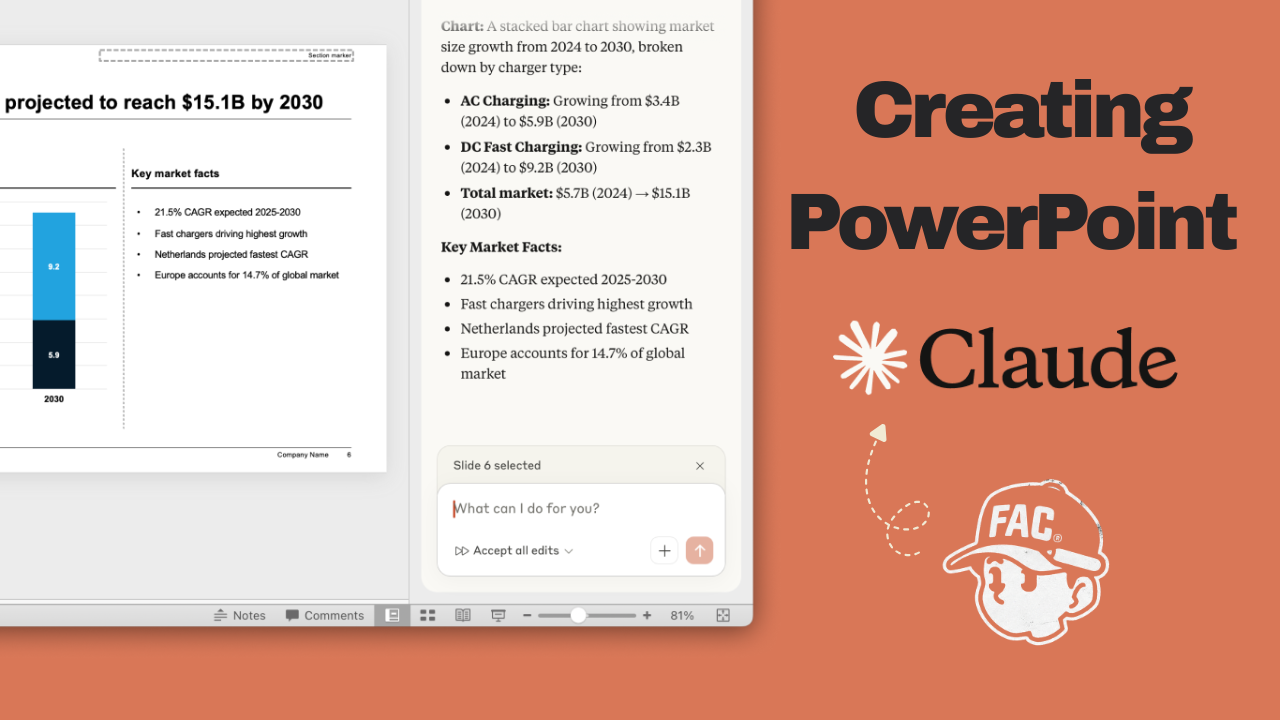
How to make presentation with Claude.

How to create a PPT presentation with Claude

It’s 2026 and you better not be making PowerPoint presentations manually.

This is a 3 step guide on how to create presentations with Claude.

  1. Creating a PowerPoint presentation with Claude
  2. Installing Claude on PowerPoint
  3. Editing the presentation with Claude

Here, I’m generating PowerPoint presentations on market research for wellness industry in the UK. I’m going to make Claude do everything from scratch.

  1. Market research (using extended thinking)
  2. Generate a PowerPoint presentation
  3. Edit slides

1. Creating a PowerPoint presentation with Claude

Creating a presentation with Claude is super simple. If you don’t have the content to put into the slides, Claude will do the research for you. If you do have the materials ready, make sure the give this to Claude before we start creating the presentation.

  1. Log in to Claude and type in this prompt:
    • Replace [TOPIC] and [SUCCESS CRITERIA] with your context.
I need a 10-slide PowerPoint (.pptx) about [TOPIC] for [SUCCESS CRITERIA].

Start by using AskUserQuestion, and ask enough context to get the full context. Run the AskUserQuestion multiple times untill ALL the questions are answered.

Then, and only then, create a .pptx.
  1. Select ‘extended thinking’ and press RUN.
  2. Claude will start asking you questions in multiple-choice format. If you’re not satisfied with the answers in the choices, you can always select ‘Something else’.
  3. Once you have answered all the questions Claude will start doing the research and building the slide, which took me about five minutes.
  4. Claude will generate the final output in a PPTX file and you can download this or open it directly on PowerPoint.

2. Installing Claude on PowerPoint

You can edit these slides on Claude but I find it much easier and more convenient to edit the presentation with Claude on PowerPoint.

This way I can still automate editing the slides using Claude and for some things that Claude cannot do I can manually come in and edit myself.

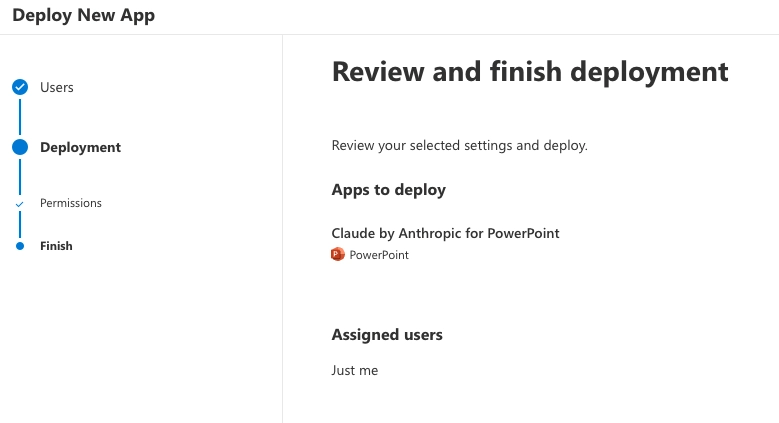
  1. Go to ‘Claude by Anthropic for PowerPoint’ and install the app by clicking ‘Get it now’.

link to PowerPoint Claude Add-in

  1. Follow the deployment process.
  1. Open the PowerPoint slide that Claude has generated and go to Add-ins on the top panel. Then select ‘Claude’.
  1. Follow the login to Claude process and now you’re all set up and ready to use Claude on PowerPoint.

3. Editing presentation with Claude

It is very likely you won’t be 100% satisfied with the presentation. So lets edit the presentation with Claude directly on PowerPoint.

  1. Select the slide you want to edit.
  2. I’m going to use a skill called /deck-refresh, which allows us to work and edit on a particular slide.
    • I asked Claude, “This slide is too text-heavy and I want to add more icons or infographics to make it more visual.”
  3. Claude will make necessary edits and you will see the edits live on PowerPoint.
  4. Sometimes I like to take a screenshot of the particular point on the slide and give the screenshot to Claude on PowerPoint.
    • This is much easier than trying to explain in words what you want Claude to edit.
    • As seen in this video right after I gave Claude the screenshot and instructions, it immediately understood the task and corrected it as I wanted it to be.
  5. Finally I do minor edits manually in cases like this where I just have to move things around. I don’t need Claude for such simple tasks.

Claude is a great tool for making the first draft of slides. Especially when combined with the PowerPoint, it gives you so much freedom to edit with Claude and edit manually when necessary.

Save this guide for next time when you have to make slides from scratch or when you want to be more efficient and fast when editing slides.

Check out our other posts on how to get started with Claude Code!

Follow me on socials for more AI productivity contents like this!

Share this post!
Selene Lee
Selene Lee
Articles: 6

Leave a Reply

Your email address will not be published. Required fields are marked *