Physical Address
304 North Cardinal St.
Dorchester Center, MA 02124
Physical Address
304 North Cardinal St.
Dorchester Center, MA 02124

Claude Code is one of the easiest ways to get started with AI-assisted coding from your own computer.
This beginner guide shows you how to set up Claude Code step by step, what you need before you start, and how to get your first working coding workflow running quickly.
If you want to use Claude Code for building apps, automating development tasks, or experimenting with AI coding workflows, this walkthrough will get you set up properly.
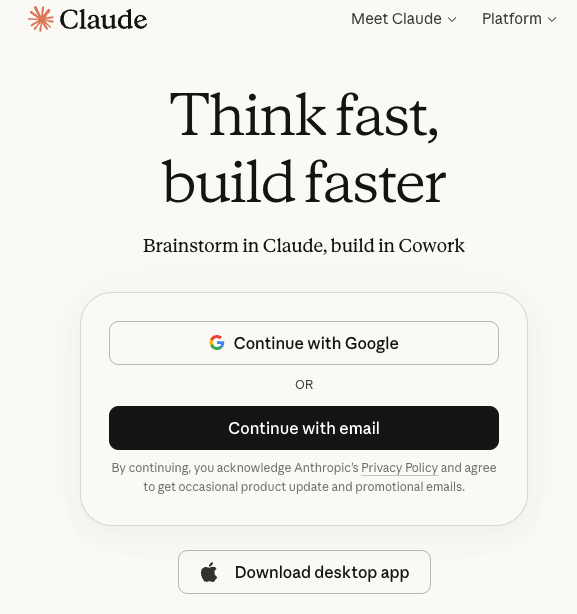
If you don’t already have a Claude account, go to claude.com and setup your account.
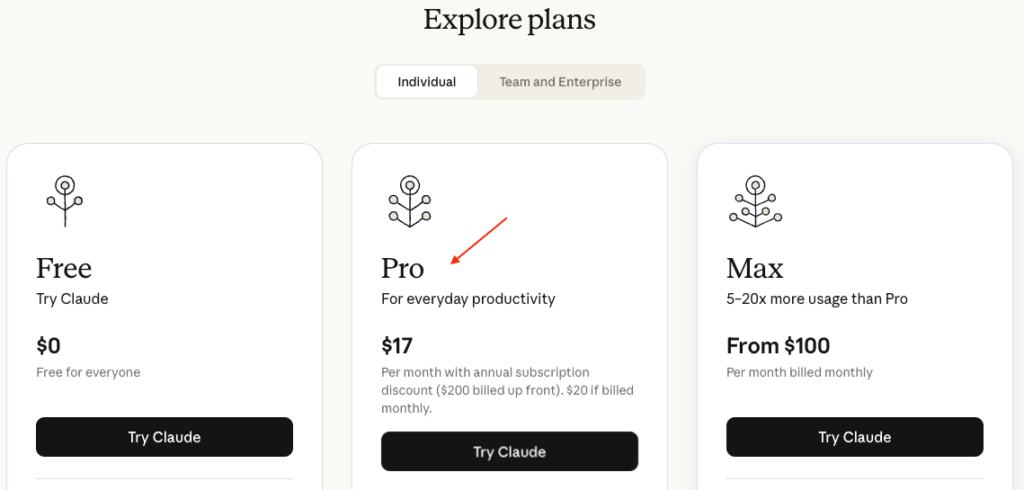
I suggest getting a Pro plan to get started. Claude Code takes up significant amount of tokens and Free plan won’t last you long enough.
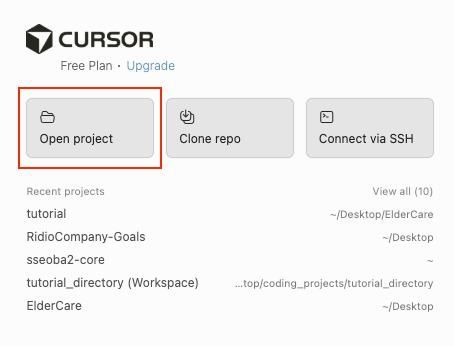
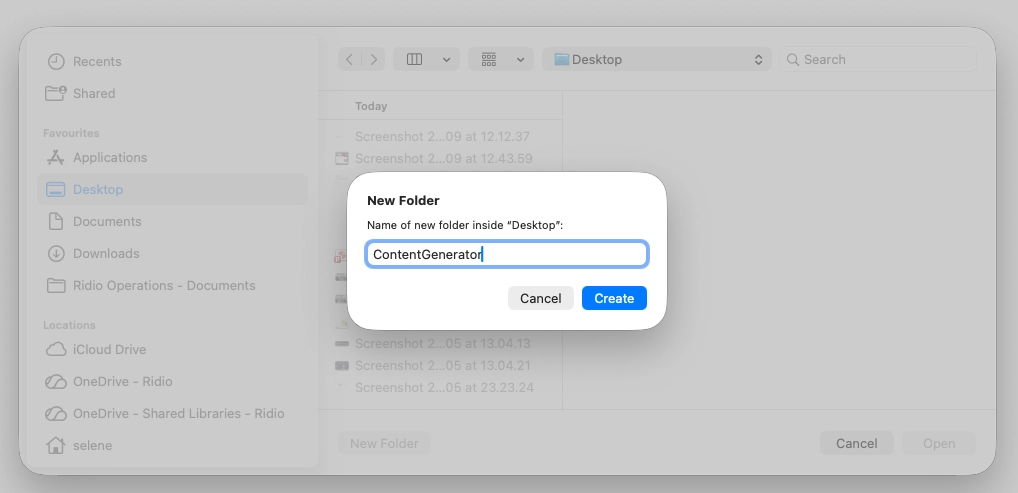
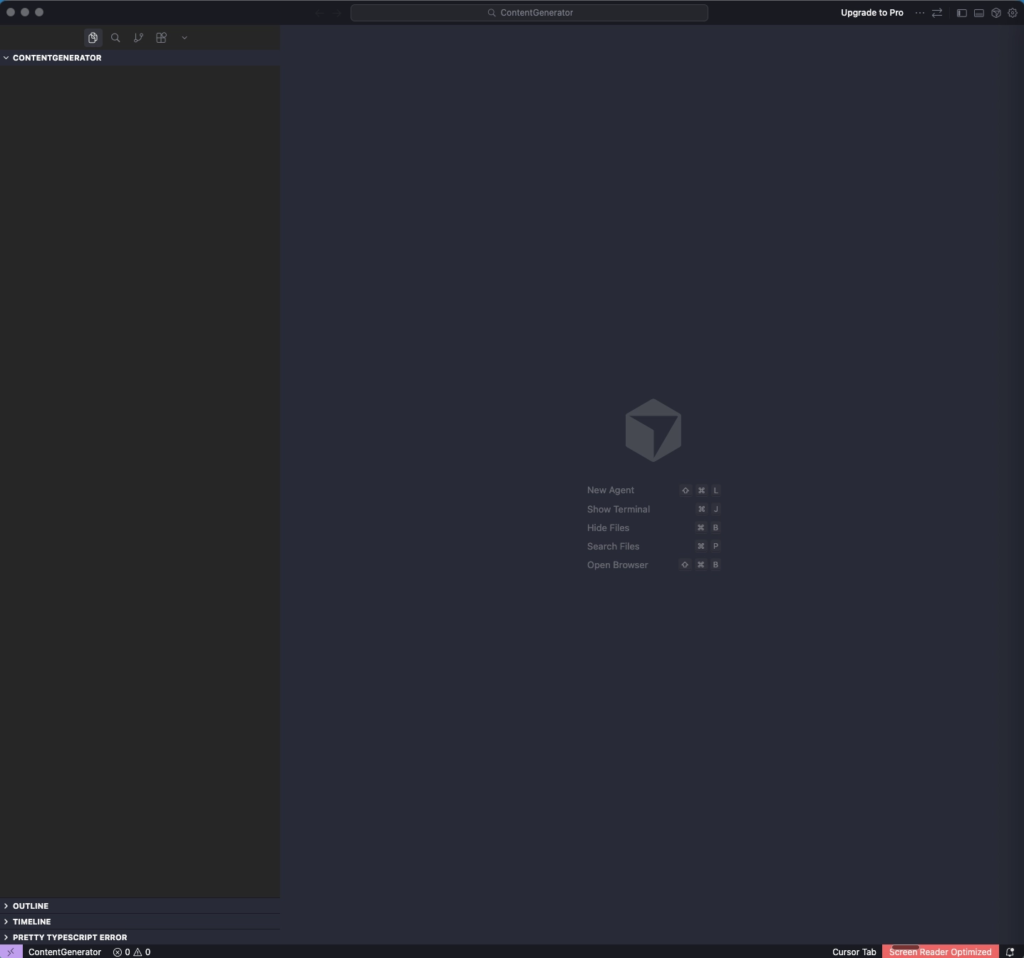
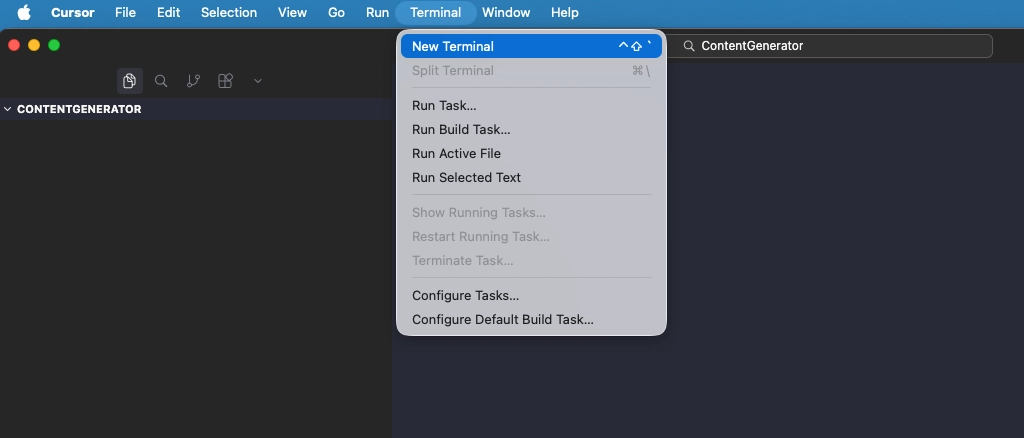
An Integrated Development Environment (IDE) is required to run Claude Code. There are multiple IDE options to choose from and I am using my favourite which is Cursor.
Go to cursor.com and download the application on your computer.
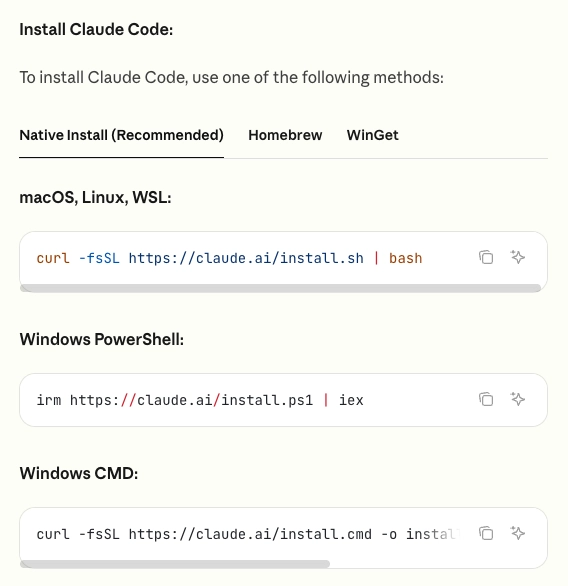
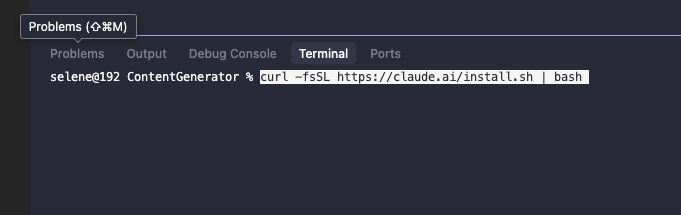
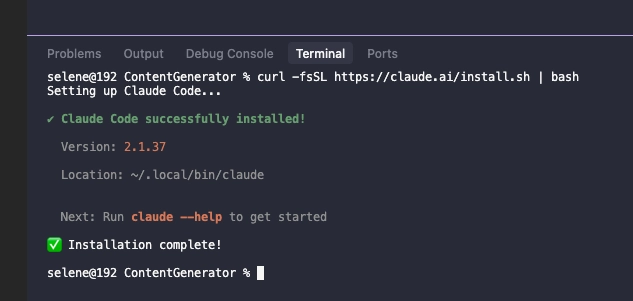
claude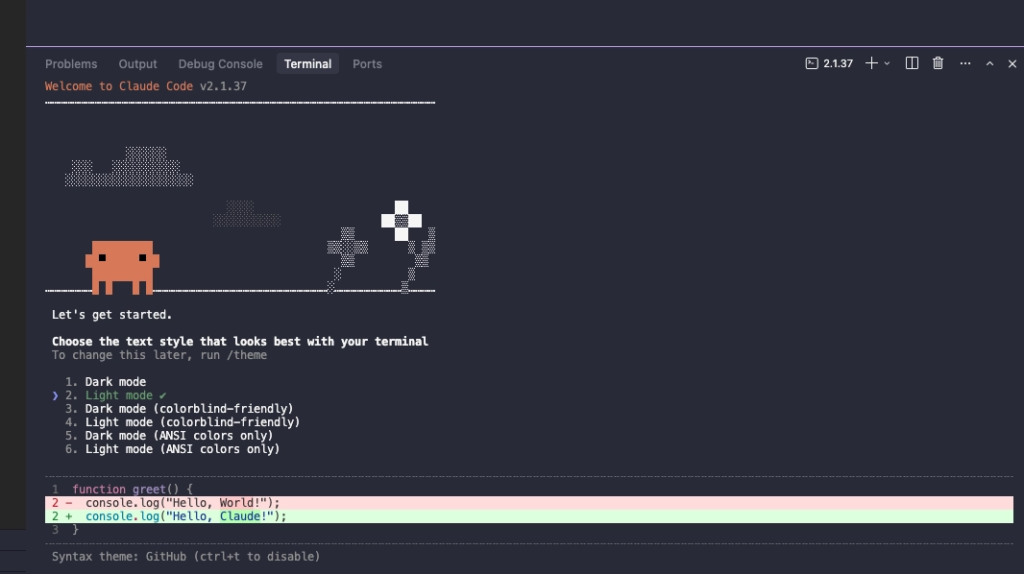
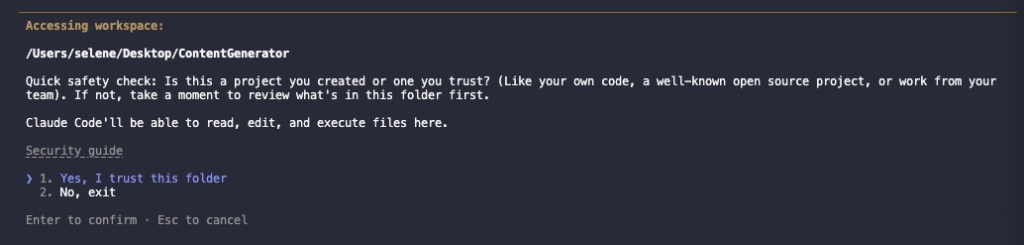
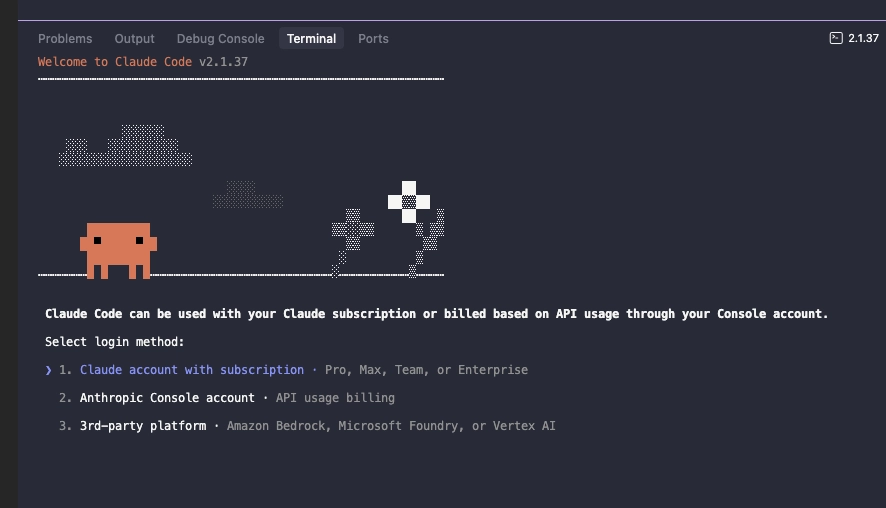
I suggest using login method #1 at all times.
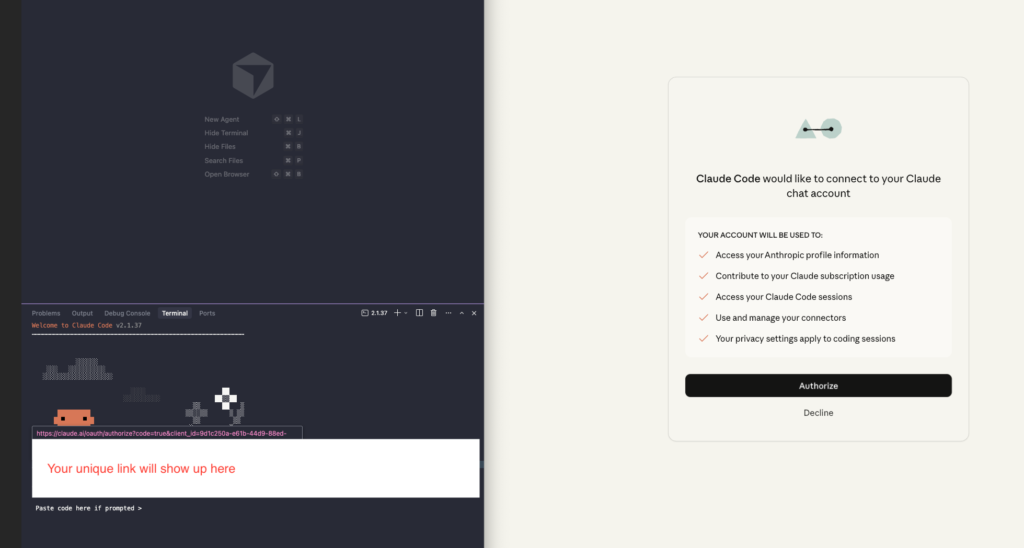
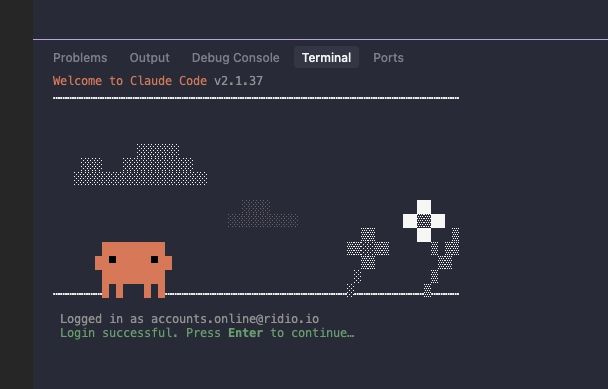
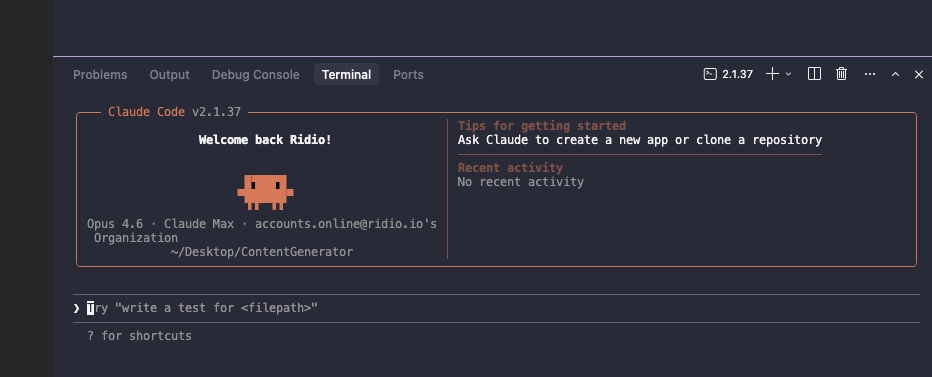
Type into Claude Code
/initThis will create a .claude folder with a configuration file about this project. It will have all the settings for Claude.
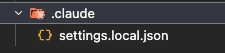
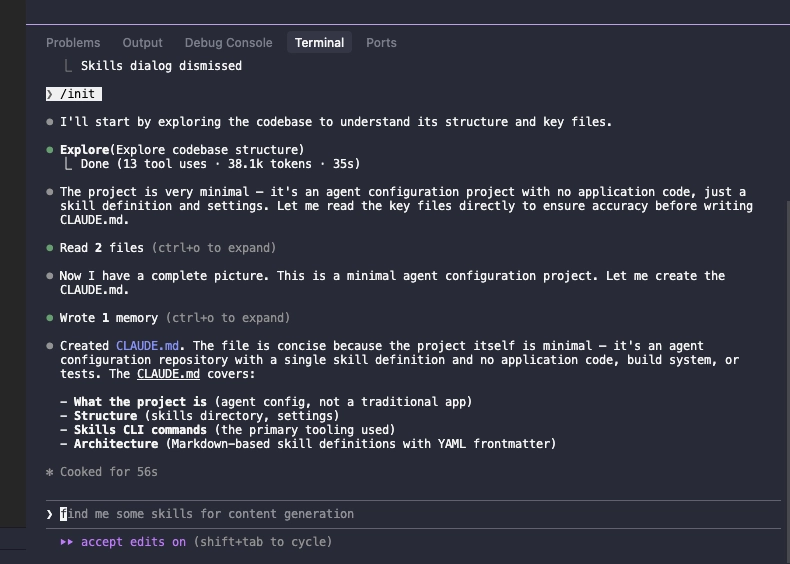
We looked at how to set up Claude Code on IDE and launch Claude Code on our terminal. Now we are completely set up and ready to go!
Just remember, you only have to login and setup Claude Code once. Also, when you’re working on a new project, always create a new folder.
Follow my socials for more AI stuff 😛
I came across WorldPulse 3D and wanted to build my own 3D world news map with Fable 5.…
If you've ever tried to scrape TikTok data, you've probably hit the same wall. You search for a…
How to find viral hooks for reels in your niche (using real TikTok data) If your reels aren't…








[…] builders — whether you’re just getting started with Claude Code or running production workloads — the practical read is this: access to near-frontier AI has […]
[…] U.S. District Judge Rita Lin ruled that the Trump administration’s decision to brand Anthropic as a supply chain risk, after the company refused to allow its AI in autonomous weapons, appeared arbitrary, punitive, and potentially in violation of First Amendment protections. The temporary order blocks both the supply chain designation and a directive banning all federal agency use of Claude. […]
[…] Claude Code tutorial for beginners: setup guide […]
[…] the kind of thing every AI company says, but Anthropic has something concrete to point to. Claude Code, its coding tool, crossed $1 billion in revenue six months after public launch. The company has […]
[…] 👉 Claude Code Tutorial for Beginners – Setup Guide […]
[…] 👉 Claude Code Tutorial for Beginners – Setup Guide […]
[…] 👉 Claude Code Tutorial for Beginners – Setup Guide […]
[…] 👉 Claude Code Tutorial for Beginners – Setup Guide […]